
How to install Wear OS watch faces?
(Note: This guide is only applied for installing watch face apps published by Biutifu Studio on Google Play store)
To have the watch face installation fast and smooth please keep your smartwatch close to your phone and make sure the phone Bluetooth is ON in order for the smartwatch to be connected.
Method 1 : Android mobile device
Step 1 : Open Google Play store app on your phone/tablet and navigate to the watch face app listing page you want to install for your smartwatch.
(Note: Google play store must be signed in with your account the one that your smartwatch synced/registered with.)
Step 2 : Install watch face
Within the app page look for tab named “Available on more devices”  , then tap on the arrow to expand the view. And from the expanded view
 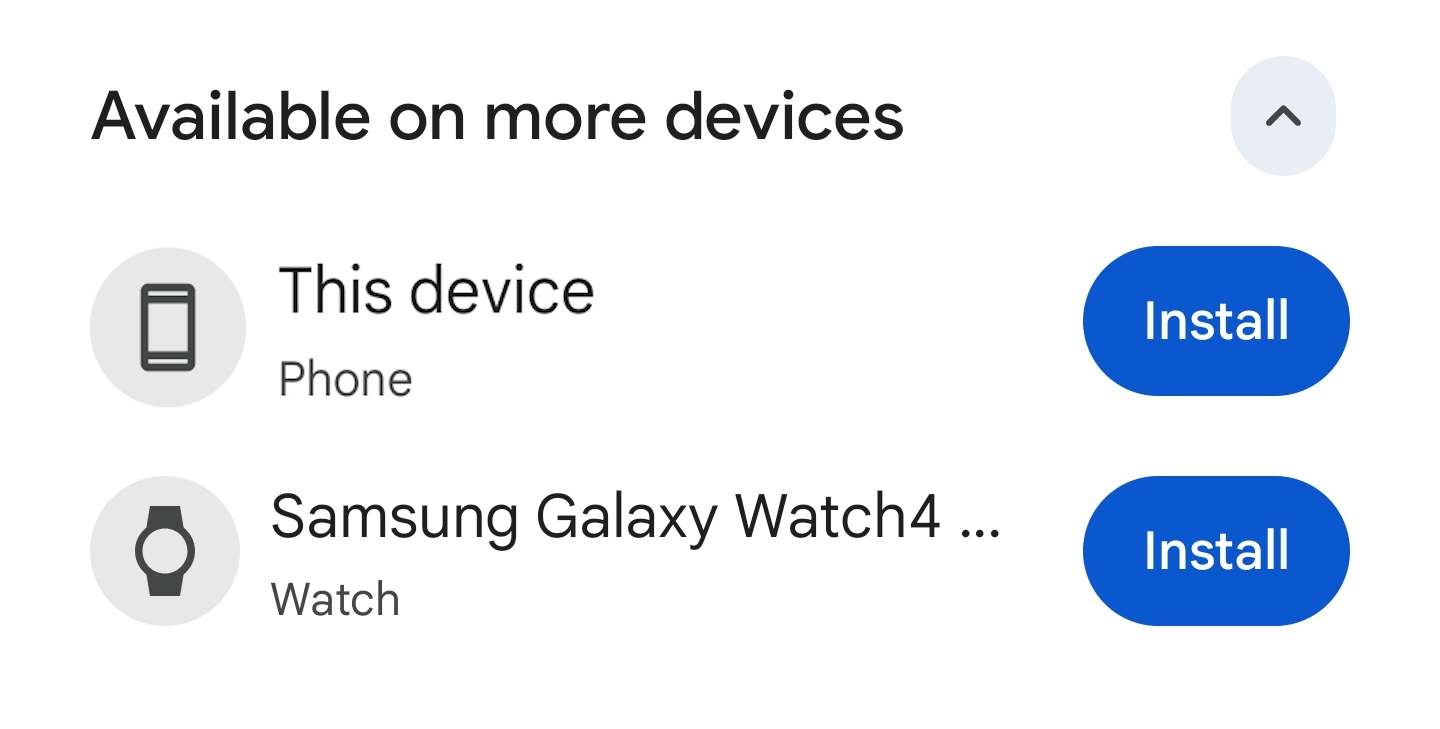 you can select to install the watch face directly on your smartwatch by tap on Install button corresponding with the device name.
Step 3 : Activate the watch face
On smartwatch device long-press the screen then swipes for the “Add watch face | plus symbol” plus symbol 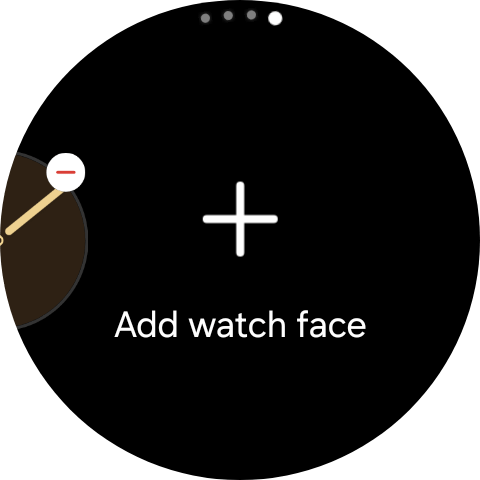 . Tap on that “plus symbol” to look for the newly installed watch face from the list and activate it.
Method 2 : Companion app
Step 1 : Install the companion app on your phone
From the Play Store app listing page, tap on  button to install the companion app.
Step 2 : Open the companion app and install watch face on your smartwatch.
After Google Play finished the installation on your phone, tap on  button to launch the companion app.
Step 3 : Install watch face
Follow the instruction from companion app to install watch face on your smartwatch.
Step 4 : Set the watch face if it is not automatically activated on your smartwatch
On smartwatch device long-press the screen then swipes for the “Add watch face | plus symbol” . Tap on that “plus symbol” to look for the newly installed watch face from the list and activate it.
IF method 1 & 2 above doesn’t work out, please try method 3 below.
Method 3 : A computer with Chrome browser installed
(Note: You can use any other web browser you prefer such as Firefox, Safari, etc.. I recommend using Chrome because it supports syncing across all devices within Google Account)
Step 1 : Open Chrome browser and sign in your Google account
Be assure that the opened Chrome browser have to be signed-in with the Google Account associates with your phone and wear OS device. You can find your Google account from your phone’s Settings > Google menu.
Step 2 : Navigate to the Google Play watch face app listing page
In Chrome browser search box/address box  enter our website homepage which is biutifuwatchfaces.com to look for and click on the watch face image of the watch face app you want to install for your smartwatch.
Step 3 : Install watch face app for smartwatch
Once Google Play watch face app page is already loaded up in Chrome and you can see  button. Click on that button to open the “Choose a device” option window
 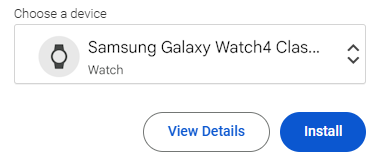 , then select your smartwatch device from selection list and click on “Install” button to start the installation.
Google may ask you to login to verify your account upon installation, please follow Google procedure to have watch face app installed then.
Step 4 : Set the watch face
After Google confirmed watch face app installed, go to your smartwatch long-press the screen then swipes for the “Add watch face | plus symbol” . Tap on that “plus symbol” to look for the newly installed watch face from the list and activate it.
If you have question or feedback about watch face installation, please send us a message at our contact us page.